

Share this article
Creating high-quality product imagery and video for ecommerce traditionally requires expensive photoshoots, large production teams, and long timelines. For many brands, producing lifestyle imagery for product detail pages (PDPs), social media, and marketing campaigns can take weeks and cost thousands of dollars.
The ALL3D AI platform changes that equation.
ALL3D is an AI product image generator and product visualization platform designed to transform simple product silhouettes into ecommerce-ready product images and video in minutes. By combining AI image generation with 3D product visualization technology, the platform helps brands move from concept to commerce-ready visuals faster than ever.
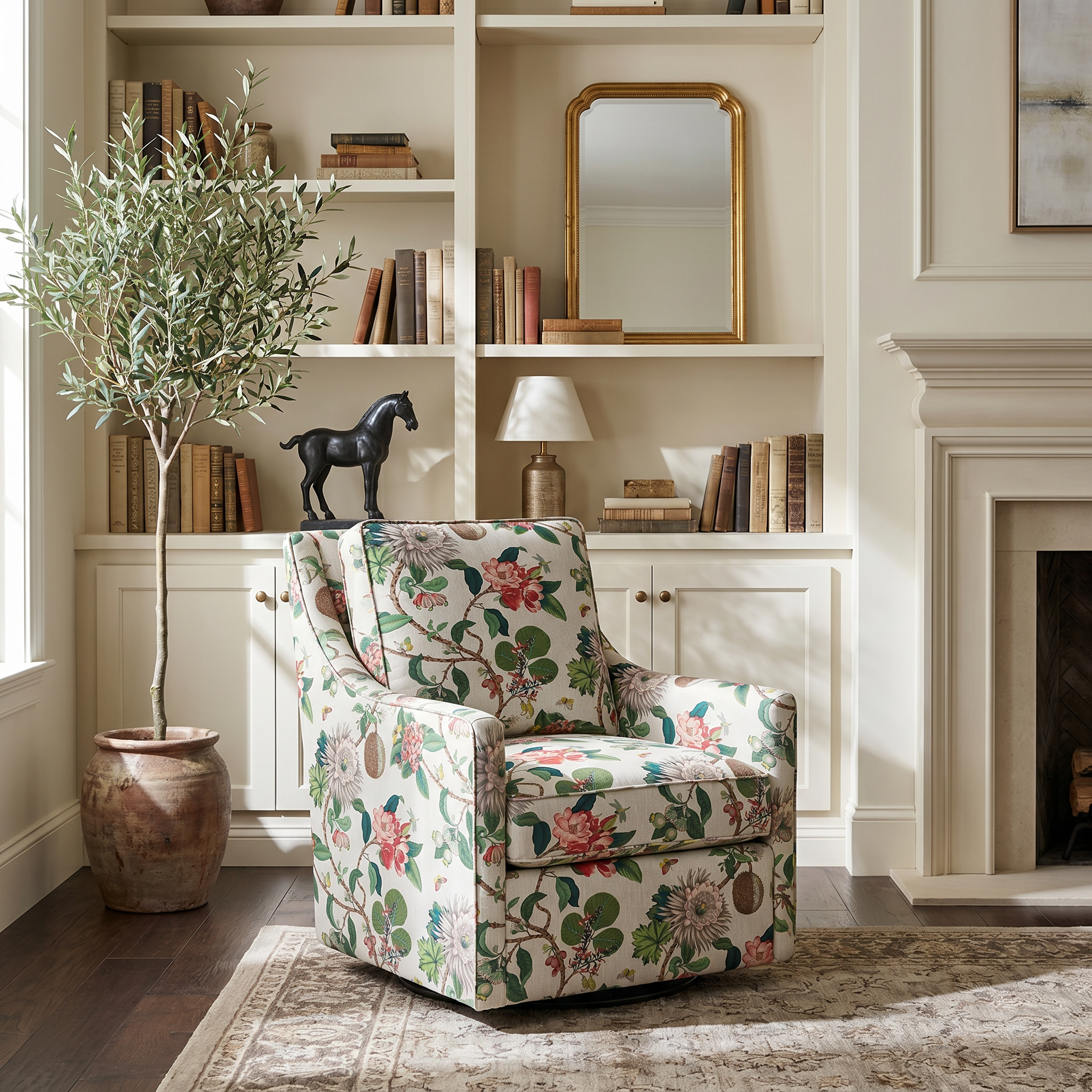
ALL3D integrates multiple leading AI image-generation models with proprietary middleware and 3D-aware intelligence to generate realistic lifestyle product images and video from existing product assets. This approach ensures product accuracy, brand consistency, and realistic lighting, scale, and perspective—a common challenge with traditional AI image tools.
Built specifically for modern ecommerce teams, creative teams, and product marketers, ALL3D dramatically accelerates product photography workflows while reducing the cost, time, and environmental impact of traditional photoshoots.
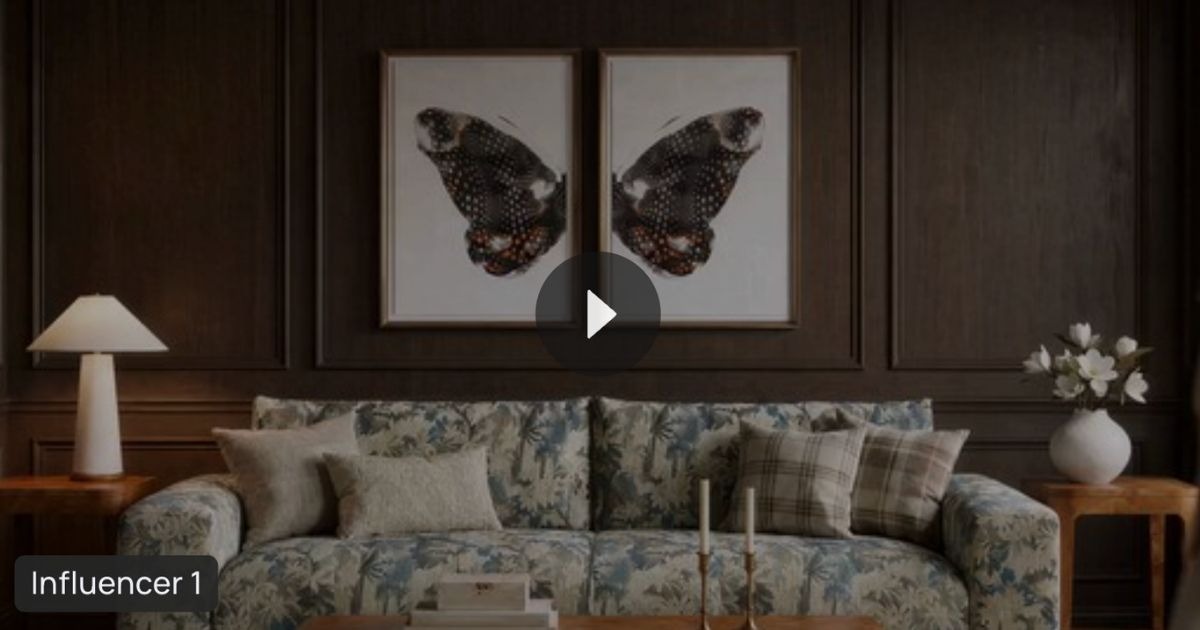
Watch the video below to see how the ALL3D AI product visualization platform works:
Step 1: Add Your Hero Product
Users upload a photo of their item, assign it a name, and enter dimensions. That’s it. The platform uses this information as the structural foundation for generating accurate, high-resolution imagery.
Unlike many AI tools, ALL3D uses 3D-aware product intelligence to maintain the correct scale, proportions, and structure of the product throughout the generation process.
This ensures the resulting AI-generated product images remain true to the original product design, which is critical for ecommerce and retail marketing.

Step 2: Add Props or Additional Products
Next, users can add props or additional products from the same collection.
For example:
- Side tables
- Decorative accessories
- Cabinets and consoles
- Lighting
This allows teams to create multi-product lifestyle scenes, a key requirement for ecommerce lifestyle imagery and marketing campaigns.
Multi-product scenes help brands tell a richer story around their products while producing content suitable for:
- Digital advertising
- Ecommerce PDP pages
- Social media marketing
- Email campaigns
- Product catalogs

Step 3: Choose Inspiration
Users can upload their own reference images or select from the platform’s Explore inspiration library.
Inspiration images help guide the AI to determine:
- Mood and atmosphere
- Lighting style
- Scene composition
- Product styling
- Auxiliary elements such as artwork or décor
Reference images also help determine framing, whether that means a tight product shot or a full lifestyle scene.
A short text prompt can optionally be added to further refine the output.
This approach allows brands to maintain consistent brand aesthetics across AI-generated product imagery.

Step 4: Choose Your AI Model
ALL3D currently supports two powerful AI image-generation models:
Nano Banana:
Nano Banana excels at editing and refining existing product imagery. It is especially effective when users want to:
- Maintain product structure
- Transfer product details
- Refine an existing composition
- Edit product imagery while preserving layout
Flux:
Flux produces highly detailed and visually polished lifestyle imagery. It is ideal for:
- Creating new scenes
- Stylized lifestyle environments
- Strong lighting and textures
- Photorealistic results
Many ecommerce teams experiment with both models to determine which works best for their specific product visualization workflow.

Step 5: Choose Your Orientation
Next, users choose the orientation of the generated image:
Square:
Square images are the most versatile format for product imagery and ecommerce product pages.
They are also ideal for:
- Instagram posts
- Marketplace listings
- Digital catalogs
Landscape:
Landscape orientation provides a wider frame, making it ideal for:
- Full-room scenes
- Multi-product compositions
- Marketing banners
Portrait:
Portrait orientation works well for:
- Mobile content
- Instagram Stories
- Vertical ads
- Editorial layouts
Choosing the right orientation ensures the final AI-generated product imagery fits its intended marketing channel.

Step 6: Select Number of Images
Users can generate 1–4 images at a time.
Generating multiple variations allows teams to quickly explore different:
- Scene compositions
- Lighting setups
- Styling directions
Each generated image uses 5 platform credits. Most teams generate 2–4 variations to quickly evaluate options before moving to editing.

Step 7: Generate AI Product Images
With all inputs selected, users generate images.
Within minutes, the platform produces several high-resolution AI-generated lifestyle images, each offering a slightly different creative direction.

Reviewing Images and Ensuring Product Fidelity
Once images are generated, users review multiple variations to select their preferred direction.
Product fidelity is critical.
The AI-generated image must accurately reflect the original product silhouette and structure.
Users can:
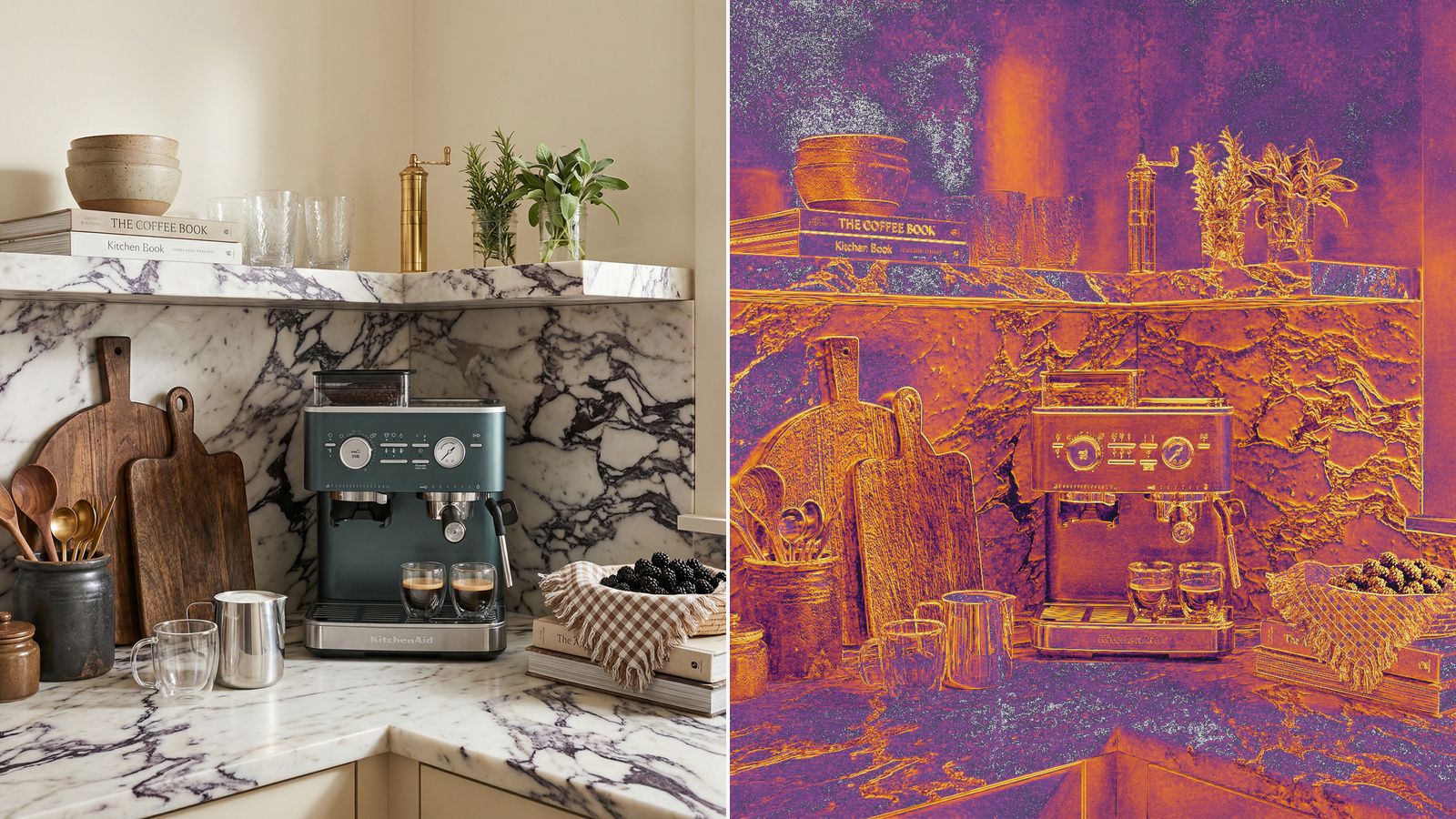
- Zoom and inspect details such as materials or wood grain
- Compare AI outputs against the original product asset
- Verify accuracy at high resolution

The platform converts the original product silhouette (for example, 1300px) into precise 2K AI product images, while preserving product structure.
Users can also compare the output against their inspiration images to ensure the correct styling and scene elements are included.
Navigation is simple. Images can be viewed instantly using arrow keys.

Editing AI Product Images With Precision
The built-in editor provides powerful tools to refine AI imagery while maintaining product accuracy.
One of the platform’s most important features is hero product preservation.
Unless explicitly instructed, the AI will not modify the hero product, ensuring the main product remains accurate. Users can edit surrounding elements freely without compromising the product.
How the Editor Works

Editor capabilities include:
- Zoomable image inspection
- Replace or add products and props
- Text prompts for editing instructions
- Product and scene color correction
- Patch transfer for labels and logos
- Remove unwanted objects
- Scale objects within the scene
Edits typically take about one minute to generate. Only one edit is applied at a time to maintain precision and control..

The result is fine-tuned control without compromising product accuracy.
Team Collaboration for Ecommerce Content Workflows
ALL3D is built for workflows, not just one-off creations, including tools that support scaling across teams. Users can use our built-in Collaboration Tool to collaborate with teammates and stakeholders in real time. Review images, leave feedback, and make edits without endless email threads and leaving the platform.
Teams can invite multiple users into a shared workspace. Creators can generate images while QA teams review them within the Review Center, creating a structured approval workflow.
Teams collaborate in real time by:
- Reviewing images
- Leaving feedback
- Making edits
- Managing approvals

Exporting High-Resolution Product Images
Once approved, users can export images. All generated images are delivered in 2K resolution, with the option to export 4K images suitable for:
- High-resolution catalogs
- Ecommerce PDP pages
- Marketing campaigns

Building AI Content Libraries
To streamline future workflows, ALL3D automatically organizes assets into shared libraries.
Product and Props Libraries
Products and props you upload are automatically saved to your Product Library and Props Library on your dashboard. These libraries allow you and your team to quickly reuse assets across multiple scenes without needing to upload them again.
Because these libraries are shared across your team, they become a growing resource that makes it easier to maintain consistency and speed up future image creation.
Inspiration Library
Inspirational images are also automatically saved for you and your team in your Inspiration Library. These images can be reused as reference images for future generations, helping guide the style, composition, and mood of new scenes.
Over time, this creates a curated library of visual inspiration that helps teams generate more consistent and on-brand imagery while reducing the need to start from scratch for every new scene.
By building and reusing these libraries, teams can create new lifestyle imagery faster while maintaining visual consistency across collections and campaigns.

AI Product Visualization Built for Modern Ecommerce
From product silhouettes to fully styled lifestyle scenes, ALL3D provides an end-to-end AI product visualization workflow.
For beginners, the platform provides a clear, guided experience. For designers, it delivers precision, flexibility, and the ability to build out a portfolio of high-quality work. For ecommerce teams, it delivers product-accurate, on-brand content for PDP, site, social, and print—quickly and at scale.
The result is faster content production, lower costs, and consistent brand visuals across ecommerce channels.
Users are also encouraged to join the ALL3D Discord community to stay connected, share feedback, and explore new features.Schedule a meeting with our team to learn more about AI product imagery and visualization workflows.

Leave a Reply