

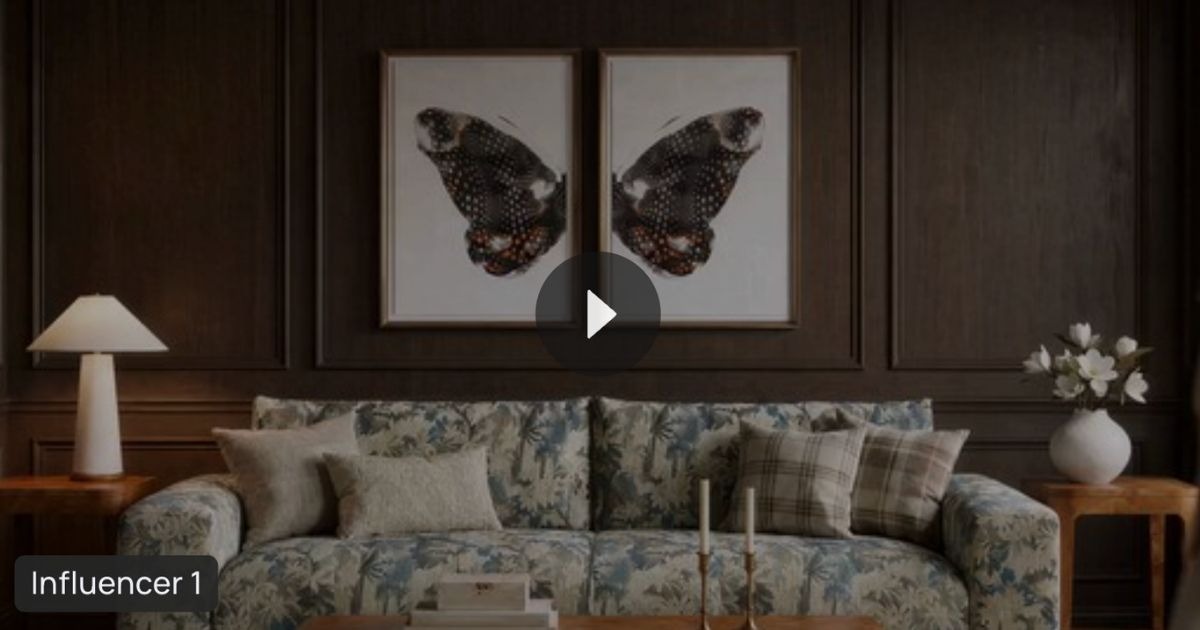
Watch the step by step video:
Overview
The Product Variant tool in ALL3D allows teams to create alternate versions of an existing product image.
Instead of reshooting a product every time a new color or finish is introduced, you can generate updated variants digitally and keep your ecommerce imagery moving faster.
This workflow is ideal for:
- New product colorways
- Finish updates
- Texture changes
- Faster product launches
- Consistent product imagery across SKUs
For a broader overview of the platform, see:
→ AI product image generation platform
What Is a Product Variant?
A product variant is another version of the same product with a different:
- Color
- Finish
- Texture
- Material appearance
Examples include:
- A bowl in red instead of cream
- A chair in walnut instead of oak
- A lamp in brass instead of black
With ALL3D, you can generate these variations directly from your original product image.
👉 In practice: one approved product image can support multiple product variants.
Step 1: Add Your Product
Start by adding your product to the platform.
Include:
- Product image
- Product name
- Product dimensions
Using an accurate source image helps improve output quality and product consistency.
Step 2: Select Create Variant
Instead of choosing standard product imagery generation, select Create Variant.
This mode is designed to transform your existing product into a new version while preserving the original shape and proportions.
Use Create Variant when you need:
- New colors
- Updated finishes
- Alternate textures
- Additional ecommerce variants
Step 3: Add a Reference Image or Choose a Hex Color
You can guide the product variant in two ways.
Option 1: Upload a Reference Image
Use a reference image if you want to match a real-world finish or texture.
Examples:
- Fabric swatch
- Wood sample
- Glaze reference
- Metal finish
Option 2: Choose a Hex Color
Use a hex code to generate an exact color variation.
In the tutorial example, a red shade is selected to create a new bowl variant.
💡 Using reference images or hex values can improve consistency and approvals.
Step 4: Add Your Prompt
Enter a short prompt describing the desired change.
Examples:
- Deep red ceramic finish
- Matte black surface
- Warm walnut wood tone
- Glossy ivory glaze
Keep prompts simple and specific.
Step 5: Choose Aspect Ratio and Number of Images
Select:
- Output aspect ratio
- Number of images to generate
In the tutorial, two images are generated for comparison.
Then click Generate.
Step 6: Review and Compare Against the Original Product
Once images are ready, compare each output against the original product silo.
Use comparison and zoom tools to inspect:
- Shape accuracy
- Surface details
- Color consistency
- Product realism
This step helps ensure your new product variant remains true to the original item.
Step 7: Select Your Preferred Variant
Choose the strongest output and click Use This Variant.
In the tutorial example, the slightly darker red base is selected.
Once approved, the updated variant becomes the new primary product image.
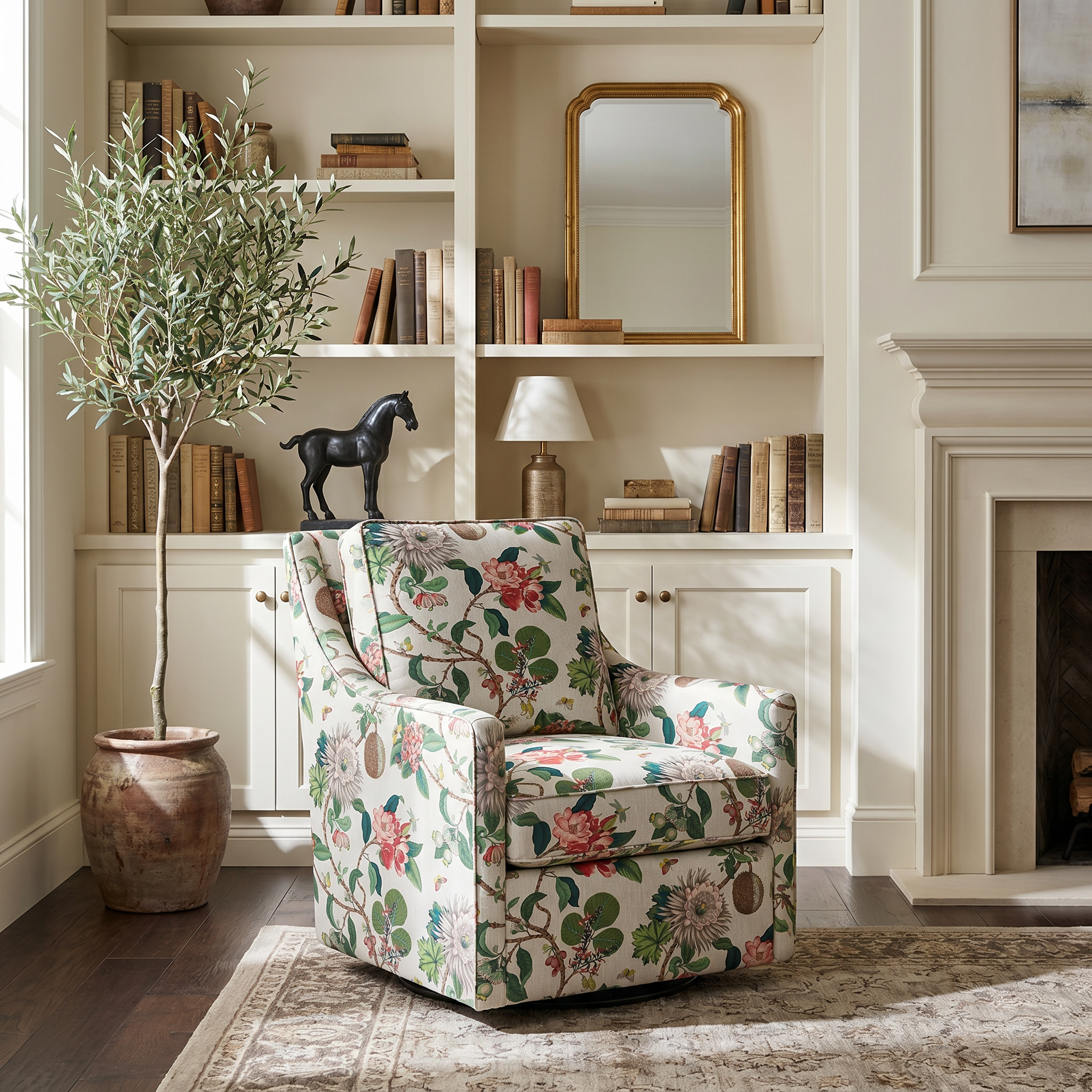
Step 8: Use the Variant in Lifestyle Images
After selecting the new product variant, it becomes available for future lifestyle generations.
That means you can move directly into scene creation using the updated version.
From there, simply:
- Add inspiration images
- Add prompts if needed
- Generate lifestyle scenes normally
For scene creation workflows, see:
→ How to Create Lifestyle Product Images in ALL3D
Why This Matters for Ecommerce Teams
Creating imagery for every product color or finish can slow launches and increase production costs.
With Product Variants in ALL3D, teams can:
- Launch faster
- Reduce reshoot needs
- Keep visuals consistent
- Expand SKU coverage
- Create updated PDP imagery quickly
For large product catalogs, see:
→ How to Bulk Upload Products in ALL3D
Frequently Asked Questions
What is a product variant?
A different version of the same product, such as another color or finish.
Can I create a new color from one product image?
Yes. Use a hex color or reference image to generate a new variant.
Will the new variant work in lifestyle scenes?
Yes. Once selected, the new variant can be used in future lifestyle generations.
Do I need a photoshoot?
No. Product Variants are generated digitally from your existing product image.
Final Takeaway
ALL3D’s Product Variant tool makes it easy to create new product colors, finishes, and alternate versions from one approved product image.
Generate multiple options, compare outputs, select the best version, and use it in future lifestyle scenes—all in a streamlined workflow built for ecommerce teams.
Related Resources
- AI product image generation platform
- How to Create Studio Product Images in ALL3D
- How to Bulk Upload Products in ALL3D
- How to Create Lifestyle Product Images in ALL3D

Leave a Reply